|
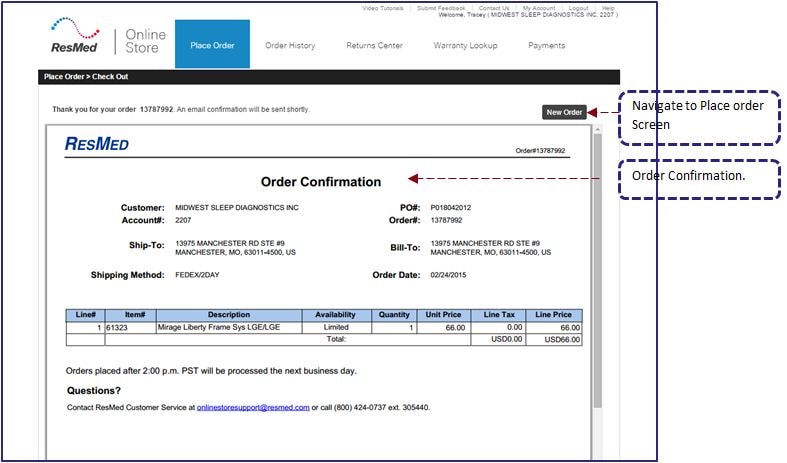
Place Order Confirmation |
  
|
|
Place Order Confirmation |
|
You will be taken to Place Order Confirmation screen by clicking the Checkout button on Place Order screen. Place Order Confirmation screen allows you to:
| • | Review the submitted information on Place Order screen. |
| • | Submit the order. |
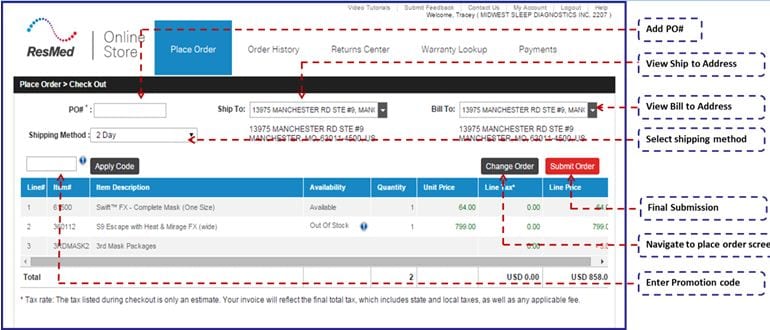
Place Order screen contains the following icons/buttons:
|
Apply promotion code. |
|
Apply selected promotion. |
|
Change order. |
|
Submit order. |
| 1. | Place the cursor in the enterable text box to enter PO #. |
| 2. | The ‘Ship to address’ will be displayed. You can modify it by selecting an option from the drop down list. |
| 3. | The ‘Bill to address’ will be displayed. You can modify it by selecting an option from the drop down list. |
| 4. | Select ‘Shipping Method’ from the drop down list. |
| 5. | Place the cursor in the enterable text box to enter applicable promotion code. |
| 6. | Left click on  button to apply the promotion. button to apply the promotion. |
| 7. | Select the available promotion from the drop down list. |
| 8. | Left click on  button to apply promotion. button to apply promotion. |
| 9. | Left click on  button to navigate to Place Order screen. button to navigate to Place Order screen. |
| 10. | Left click on  button to submit the order. button to submit the order. |
| 11. | A thank you note is displayed for submitting the order to ROS system. |