|
Place Order |
  
|
|
Place Order |
|
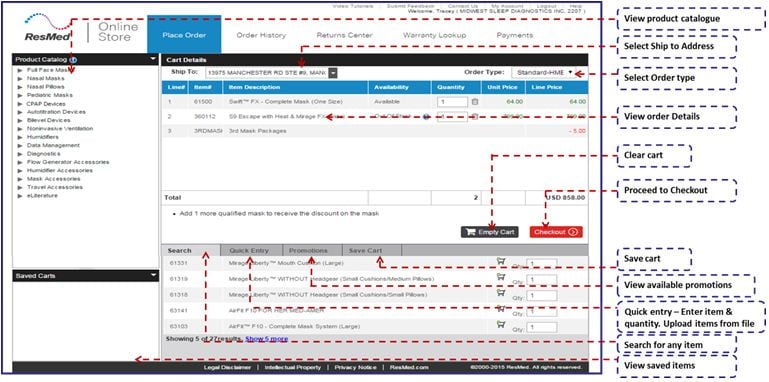
You can invoke the Place Order screen by clicking on the Place Order tab (the first tab) on the main menu. Place Order allows you to:
| • | View item details from the product catalog. |
| • | Order item from the online store. |
| • | Upload items from a file. |
| • | Enter item numbers and quantities to a Shopping Cart. |
Place Order screen contains the following icons/buttons:
|
Display 5 more items. |
|
Display 5 less items. |
|
Add to shopping cart. |
|
Add Item from shopping cart. |
|
Delete item from shopping cart. |
|
Add items to shopping cart. |
|
Upload file to shopping cart. |
|
Add for file to upload. |
|
View item information. |
|
Apply promotion code. |
|
Apply selected promotion. |
|
Save cart. |
|
Delete items from shopping cart. |
|
Delete saved cart. |
|
Proceed to place order confirmation screen. |
| 1. | Select ship to address from the ‘Ship To’ drop down list. |
| 2. | Select order type from the ‘Order Type’ drop down list. |
| 3. | Left click on  the icon to view product information. the icon to view product information. |
| 4. | Left click on the item in the product catalog to add an item to the cart. |
| 5. | The cart detailed section of the screen displays the following fields- Line #, Item #, Item Description, Availability, Quantity, Unit Price, Line Price. |
| 6. | Left click on the  icon to remove an item from the cart. icon to remove an item from the cart. |
| 7. | Left click on the Search tab to search for available items in the product catalog. |
| • | You can search for items in the product catalog based on the following fields (i.e. Item no., Item description). |
| • | Check the ‘Show Cart Items’ check box to display items already added to the cart. |
| • | Left click on the  icon to add item to the cart. icon to add item to the cart. |
| 8. | Left click on the Quick Entry tab to add items directly to the cart. |
| • | Place the cursor in the enterable text box next to Item # to enter Item #. |
| • | Place the cursor in the next enterable text box to enter Qty. |
| • | Left click on  button to add items. button to add items. |
| • | Left click on  button to select a file containing item # and quantity. button to select a file containing item # and quantity. |
| • | Left click on ‘Includes Header Row’ checkbox to upload a file with header. The format of the header will be Item#, Quantity. |
| • | Left click on  button to add all the items included in the file to the Cart. button to add all the items included in the file to the Cart. |
| 9. | Left click on Promotions tab to apply available promotions. |
| • | Place the cursor in the enterable text box to enter applicable promotion code. |
| • | Left click on  button to apply promotion. button to apply promotion. |
| • | Select the available promotion from the drop down list. |
| • | Left click on  button to apply the promotion. button to apply the promotion. |
| 10. | Place the cursor in the enterable text box to enter shopping cart name. |
| 11. | Left click on  to save the current shopping cart. to save the current shopping cart. |
| 12. | Left click on  button to delete saved items. button to delete saved items. |
| 13. | Select saved cart from the drop down list. |
| 14. | Left click on  button to delete selected cart. button to delete selected cart. |
| 15. | Select saved cart from the drop down list. |
| 16. | Left click on button to proceed to Place Order Confirmation screen. button to proceed to Place Order Confirmation screen. |


