|
My Account |
  
|
|
My Account |
|
You can invoke My Account screen by clicking on the ‘My Account’ link present on the top right portion of the screen. My Account screen allows you to:
| • | View user information. |
| • | Modify user information. |
| • | Change password. |
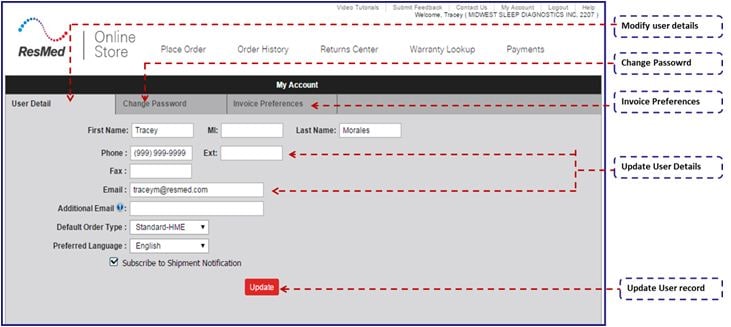
The My Account screen contains the following icons/buttons:
|
Submits the request. |
| 1. | All the information that was supplied by the user at the time of account request to the ROS system will be listed under the User Detail tab. The information displayed will be First Name, Middle Initial, Last Name, Phone, Extension, Fax, Email. You can edit this information and left click on the  button to submit the new information. button to submit the new information. |
| • | Select the preferred order type from the ‘Default Order Type’ dropdown list. |
| • | The user will be able to check the checkbox next to ‘Subscribe to Shipment Notification’ if s/he chooses to receive notification for shipment details. |
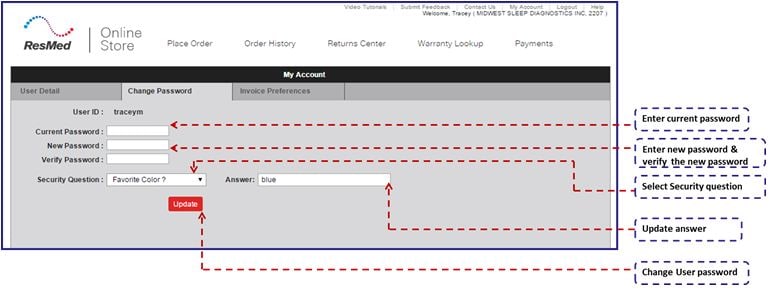
| 2. | Left click on Change password tab to change your password. |
| • | Place the cursor in the next enterable text box. Enter Current Password. |
| • | Place the cursor in the next enterable text box. Enter New Password. |
| • | Place the cursor in the next enterable text box. Enter Verify Password. |
| • | Select a question from the ‘Security Question’ drop down list. Place the cursor in the next enterable text box. Enter an answer to the selected question. |
| • | Left click on  button to save the changes. button to save the changes. |
