Overview
Significant Features
Icons/buttons
Functions
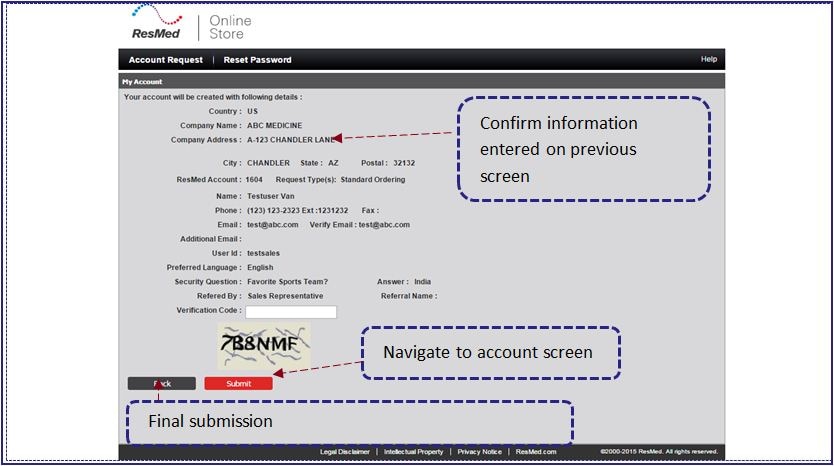
You will be taken to Account Request Confirmation screen by clicking on the Submit button on Account Request screen. Account Request Confirmation screen allows you to:
| • | Review the submitted information on Account Request screen. |
Top
Top
Account Request Confirmation contains the following icons/buttons:

|
Navigate to Account Request screen.
|

|
Final submission.
|
Top
| 1. | The following information is displayed for a company: |
| 2. | The following information is displayed for a user: |
| 3. | Left click on the  button for the final submission of the request to ROS. button for the final submission of the request to ROS. |
| 4. | This information will be passed to the ROS administrator. The administrator will review the request and approve the account for accepted users. |
| 5. | Left click on the  button to make changes to the information entered on the Account Request screen. button to make changes to the information entered on the Account Request screen. |
Top


